
Storage Modes
هذا المحتوى غير متوفر بلغتك بعد.
Overview
Section titled “Overview”Smarter Files supports two storage modes that control how files are linked to records. The mode is set per component instance in Lightning App Builder.
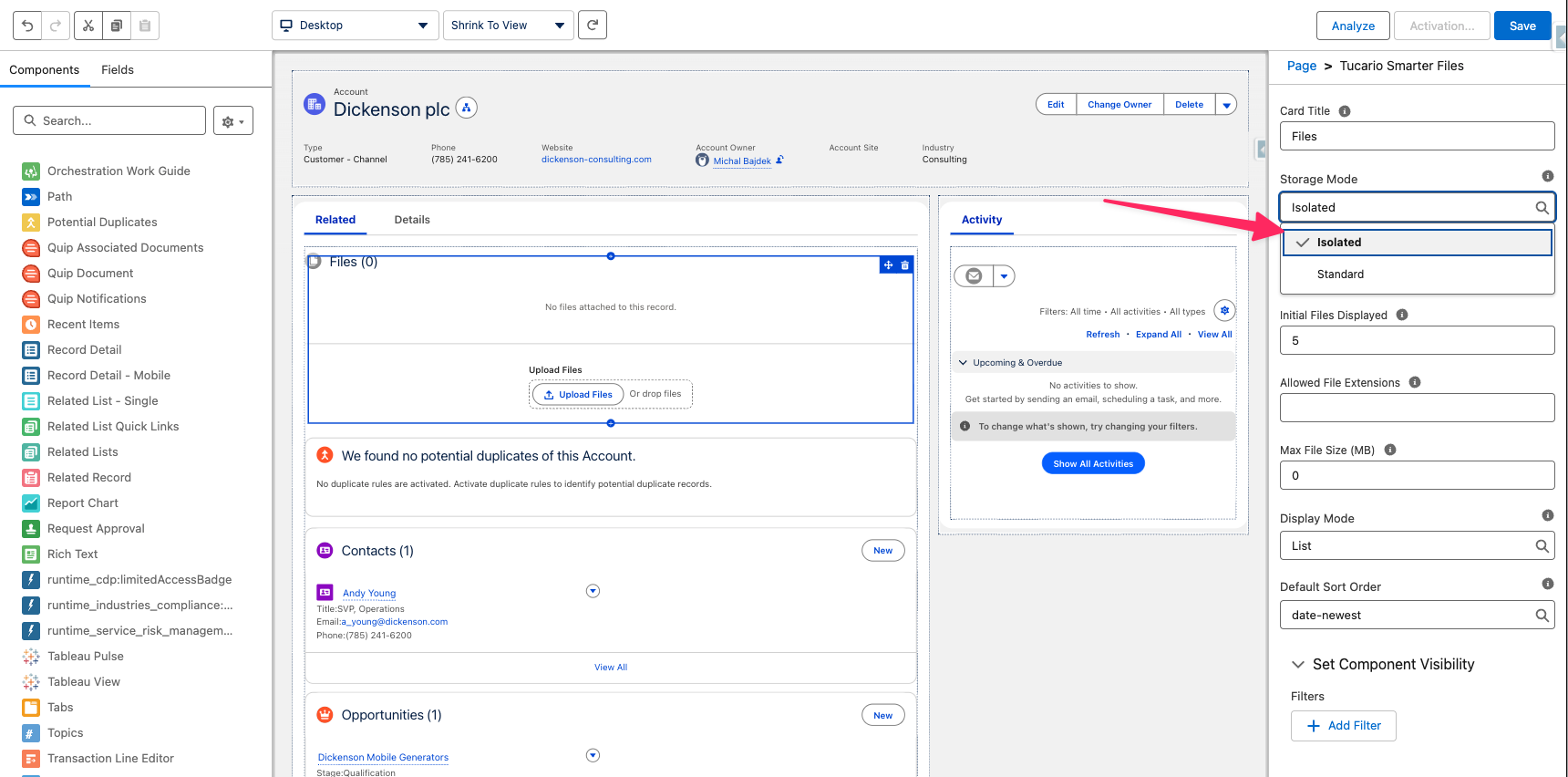
Standard Mode (Default)
Section titled “Standard Mode (Default)”- Files are linked via the native Salesforce
ContentDocumentLink. - Files appear in both the Smarter Files component and the standard Files related list.
- Visibility controls (categories, private documents) are not available.
- Best for: simple file management where you want to keep compatibility with the standard Files related list.
Isolated Mode
Section titled “Isolated Mode”- Files are linked via a junction record (
Tucario_File_Visibility__c) only. - Files appear only in the Smarter Files component — they are hidden from the standard Files related list.
- Visibility controls are fully available: categories, private documents, role-based filtering.
- Best for: scenarios where you need to control who can see which files.
Comparison
Section titled “Comparison”| Standard | Isolated | |
|---|---|---|
| Files visible in standard Files related list | Yes | No |
| Category assignment | Not available | Available |
| Mark as Private | Not available | Available |
| Role-based visibility filtering | Not available | Available |
| Migration required when switching | — | Yes |
Migrating to Isolated Mode
Section titled “Migrating to Isolated Mode”When switching a component from Standard to Isolated mode on a record that already has files, existing files won’t be visible until they are migrated.
The component displays a warning banner with a Migrate Existing Files button. Clicking it:
- Starts a batch job that creates junction records for all existing
ContentDocumentLinkrecords on that record. - Shows a progress bar during migration.
- Displays a success message when complete.
The migration is safe to re-run — it uses upsert on the Content_Document_Id__c external ID field.